Products Mapping
The screen where each Salla product is linked to its Odoo item, automatically first and then by hand.
Open Products Mapping
The link opens the screen directly in the Integration Dashboard.
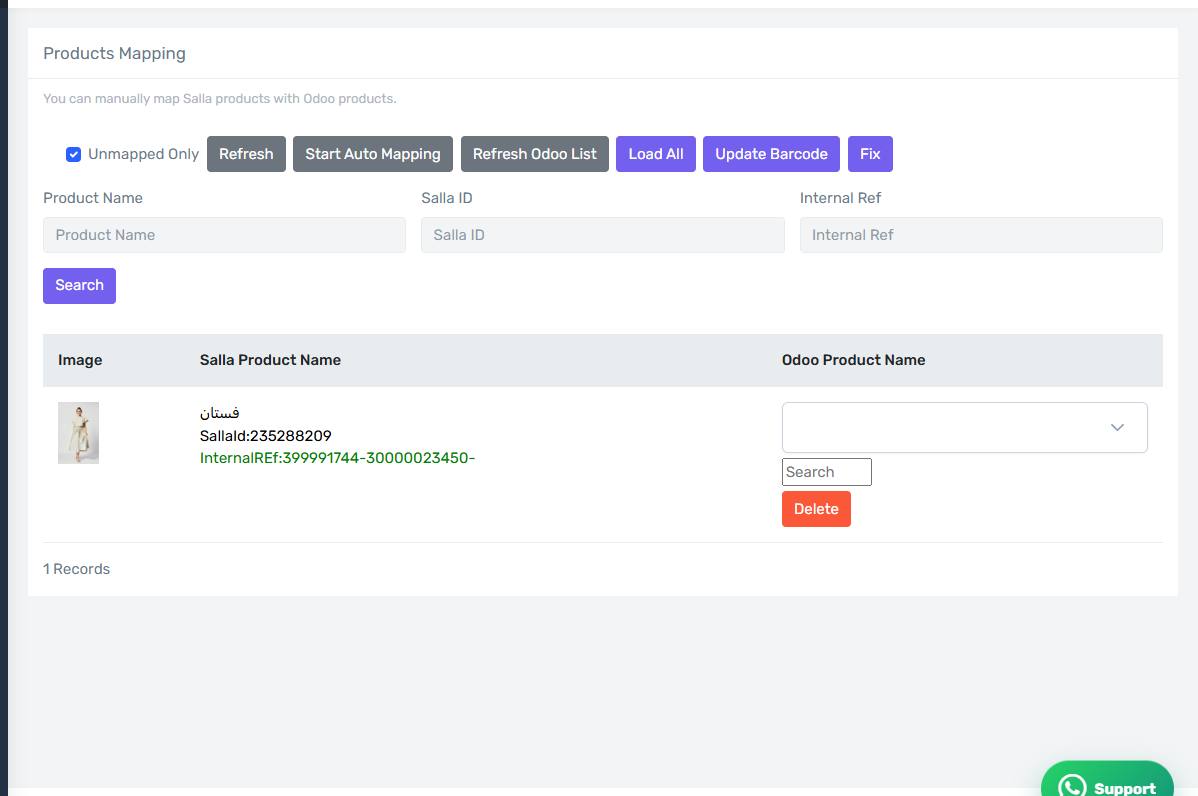
The Products Mapping screen
How the screen appears in the Integration Dashboard.
Start with automatic mapping
Press Start Auto Mapping. The connector walks every product and tries to find the matching Odoo item by SKU, then barcode, then internal reference. On a consistent catalogue this covers most items in minutes.
Then show only the unmapped
Turn on Unmapped Only to see what is left. That is your work list: every row on it is a product whose orders will not reach Odoo.
Map by hand
For each row, pick the Odoo item from the dropdown. If your Odoo catalogue is large the item will not be in the list — type the Odoo item ID into the search box and press Enter to pull it directly from Odoo.
Products with options
A product with options appears as one row per combination. Every combination must be mapped, because an order containing an unmapped combination fails on its own.
Unlinking
The Unlink button removes the link between a Salla product and an Odoo item. Use it when auto-mapping matched the wrong one.
Refreshing the Odoo list
If you created new items in Odoo and they are not in the list, press Refresh Odoo List.
How you know you are done
Turn on Unmapped Only; if no rows appear, your catalogue is fully mapped. Check the Product Error screen as well.