The Inventory tab
Moving products between the two systems, the warehouse, picking types, and stock locations.
The Inventory tab
How the screen appears in the Integration Dashboard.
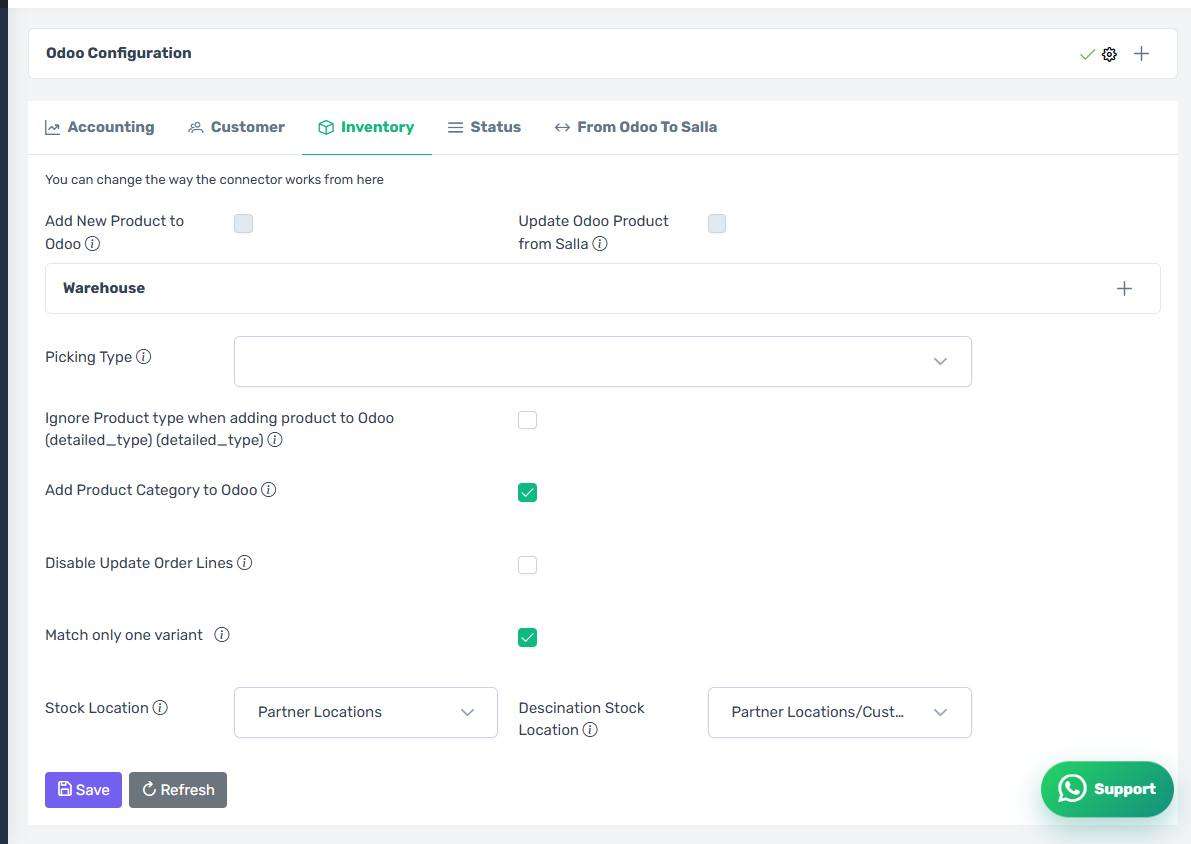
The four product transfer switches
Four independent switches decide which way item data moves:
- Add New Product to Odoo — a new Salla product is created in Odoo.
- Update Odoo Product from Salla — a Salla edit is reflected in Odoo.
- Add New Product to Salla — a new Odoo item is created in Salla.
- Update Salla Product from Odoo — an Odoo edit is reflected in Salla.
Turn on only what you need. Enabling both directions on the same field makes changes hard to trace.
The last two reveal a screen
Turning on either of the push-to-Salla switches makes the Products Mapping OTS screen appear in the sidebar.
Warehouse
Choose the default Odoo warehouse; the default is usually named Warehouse. You can also open the warehouse panel to pick a different warehouse for each Salla branch.
Picking Type
The operation type created to move goods out; the default is usually Delivery Orders.
Stock locations
- Stock Location — the Odoo location the goods leave from.
- Destination Stock Location — the customer location, by default
Partner Location/Customer.
Product creation options
- Ignore Product Type — the connector does not set whether the item is consumable, service or storable, and leaves Odoo's default.
- Add Product Category to Odoo — Salla categories are carried into Odoo.
- Match only one variant — when a product has several variants such as colour and size, the connector matches on one variant if not all of them match.
Disable Update Order Lines
When on, the connector stops editing sales-order lines in Odoo when the Salla order changes. Turn it on only if you edit orders by hand in Odoo and do not want your edits overwritten.