How the Configuration screen works
The shape of the screen, reviewing changes before saving, and why nothing takes effect until you save.
Open Configuration
The link opens the screen directly in the Integration Dashboard.
The Configuration screen
How the screen appears in the Integration Dashboard.
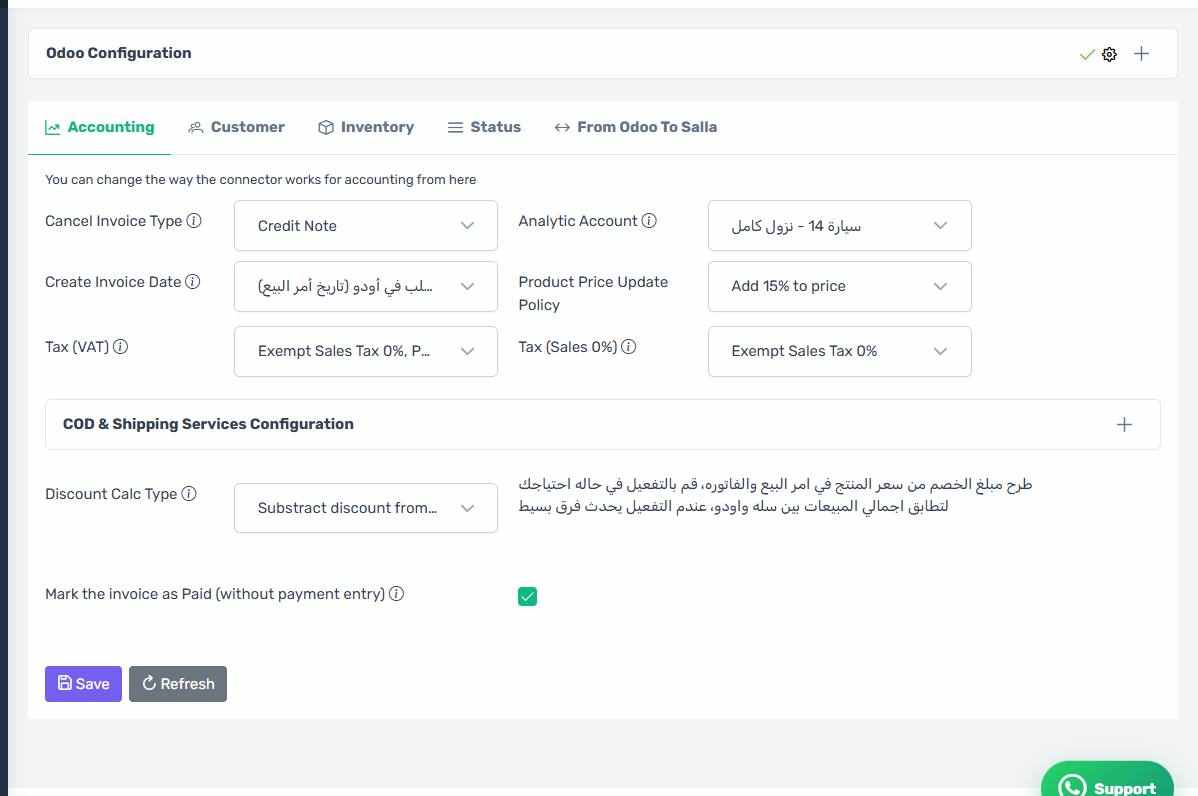
A panel on top, tabs underneath
The top of the screen is the Odoo Configuration panel: connection details, hosting type, and preparing the Odoo side. Under it are five tabs:
- Accounting — taxes, journals, invoice behaviour, discounts.
- Customer — how a customer reaches Odoo, and the accounts and journals tied to them.
- Inventory — product transfer, warehouse, picking types.
- Status — which Salla status triggers which Odoo step. The most important tab on the screen.
- From Odoo to Salla — what gets sent back to your store.
The Refresh button
The Refresh button re-reads every list from Odoo and Salla: journals, accounts, warehouses, taxes, shipping companies and payment methods. Use it after adding anything in Odoo so it appears here.
Review before you save
Pressing save opens a Review Changes Before Saving dialog listing every field that changed, old value and new. Read it: it is easy to change a status list by accident while scrolling. Then press Confirm and Save.
Nothing applies until you save
Everything you change on the tabs lives in your browser only until you press save. Leaving the page before that loses every change with no warning.
No changes detected
If the dialog says "No changes detected" you have not actually changed anything — usually you re-picked the value that was already there.