Odoo connection information
The six fields the connector needs to reach your Odoo database.
1Open Configuration
The link opens the screen directly in the Integration Dashboard.
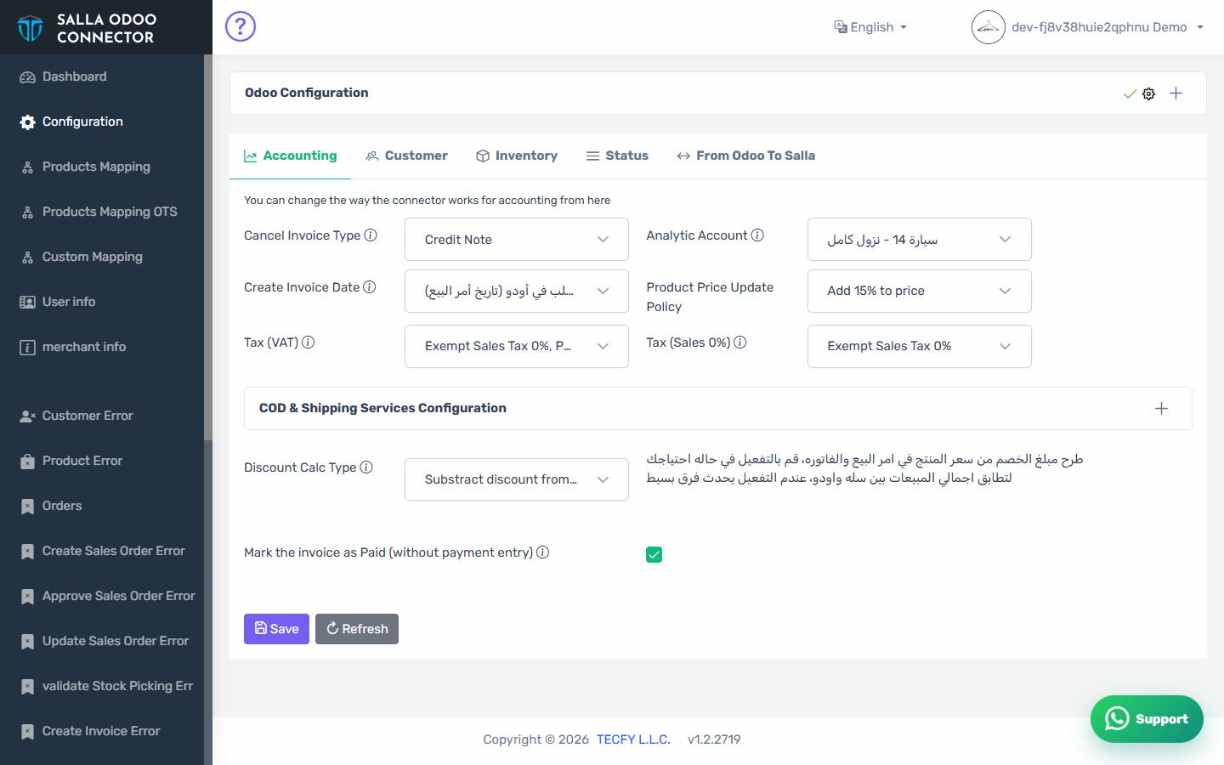
2The Odoo Configuration panel
The panel at the top of the Configuration screen, above the five tabs.
3Odoo URL
Your full Odoo application URL including https://, for example https://mystore.odoo.com. Do not add a path after the domain and do not end with a slash.
4Database
The database name in Odoo. On Odoo Online it is usually the same as your subdomain. If your server has more than one database, the wrong name gives a connection error rather than a permission error.
5Port number
The default is 443 for any Odoo served over https. Leave it alone unless your server runs on a non-standard port.
6Email and password
The email and password of the Odoo account the connector will act as. Read "Which Odoo account to use" before you choose the account.
7Odoo version
Enter your Odoo version number, such as 17.0 or 19.3. A wrong number here makes the connector write to fields that do not exist. See "Odoo version".
8Save, then reload
Press Save and Reload. The dropdowns on the tabs (journals, accounts, warehouses, taxes) stay empty until the connection succeeds and they are read from Odoo, so do not try to configure the tabs before this step.
9The lists are still empty
If the lists are still empty after saving, the connection did not succeed. Open the Save menu and choose Check Connection to see the error message, then see "Odoo will not connect".
10Your Odoo password is stored by the connector
The connector service needs these details to reach Odoo on your behalf, so it stores them. Use a dedicated integration account rather than your personal one, and rotate its password when the person responsible for the system changes.