Installing the app on your Salla store
The connector cannot be used until the app is installed from the Salla App Store and granted access.
1Sign out first
If you have used the dashboard before with another account, sign out of it first so the two accounts do not get mixed up.
2Open the app page in the Salla App Store
Open the "Odoo Connector" app page in the Salla App Store while signed in to your store.
3Add the app
Press the add button, then press Grant access on the next screen. That grant is what lets the connector service read your orders and products and update your store quantities.
4Choose a dashboard password
After granting access you are taken to the dashboard and asked for a password. This password is for the dashboard alone — it is not your Salla password and not your Odoo password — and you will use it to sign in later.
5Enter your Odoo details
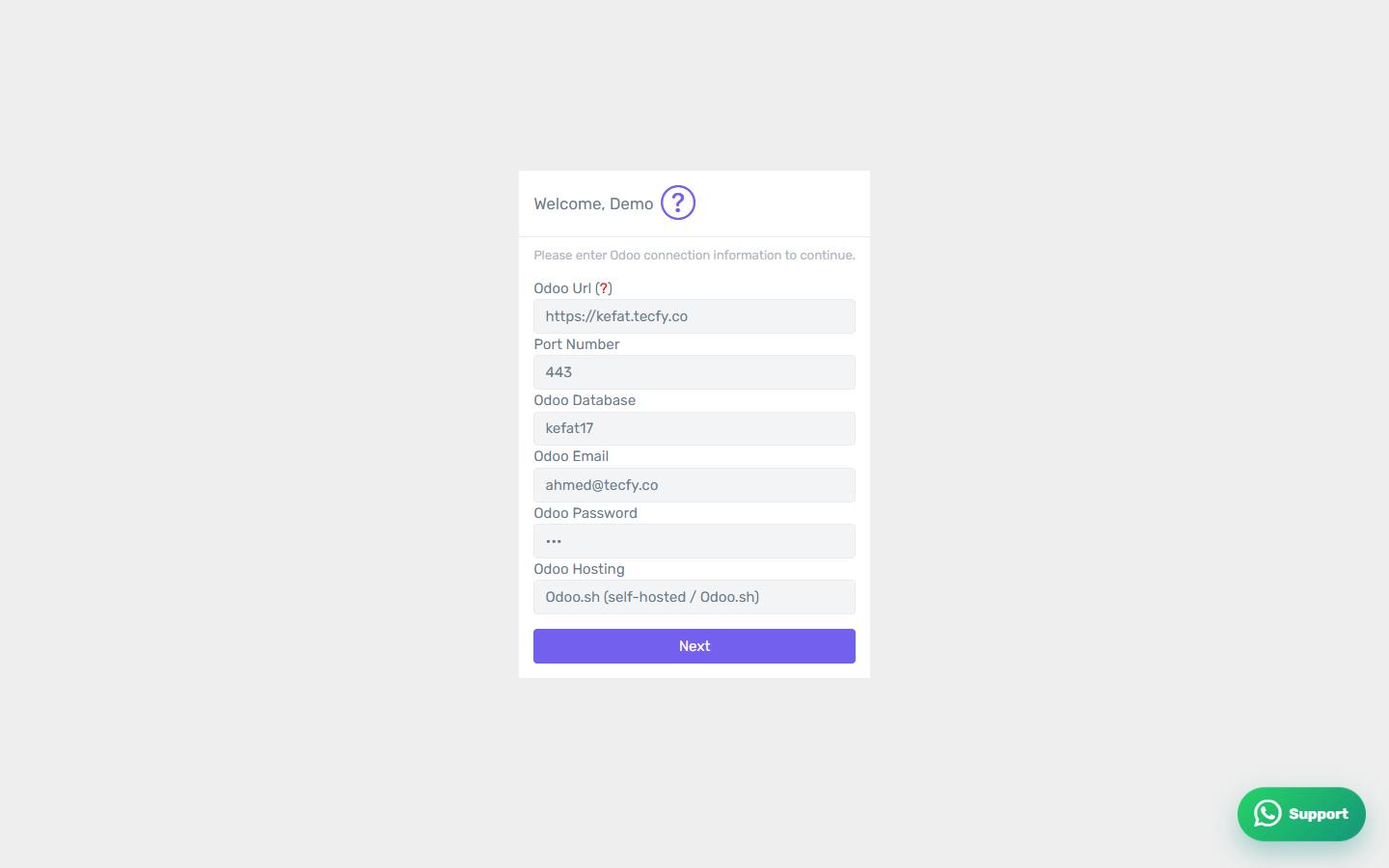
The very next screen is the Odoo connection form. Enter your Odoo URL, database name, email and password. The details are in the "Connecting Odoo" section.
6Open the first-time Odoo connection form
The link opens the screen directly in the Integration Dashboard.
7The first-time Odoo connection screen
The screen shown immediately after you choose your password.
8No Odoo yet?
You can continue without Odoo details for now — see "If you do not have Odoo yet" to book a session with the Tecfy team or create a trial database.
9Installation complete
The app is now installed and your account is ready. The next step is configuration — start from "First-time setup checklist".