Finding your way around
The sidebar and the header, and why some sidebar entries are missing for you.
The sidebar
How the screen appears in the Integration Dashboard.
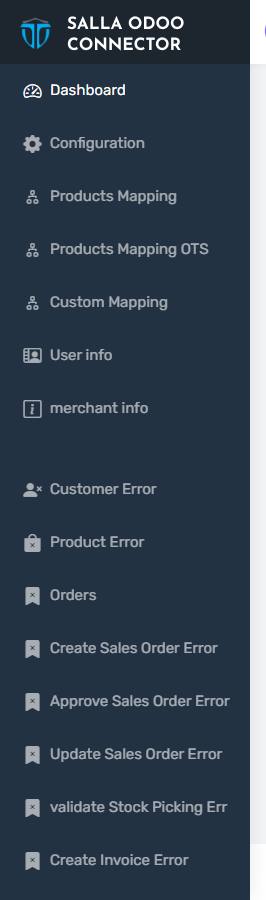
Three groups in the sidebar
The sidebar is split by separator lines into three groups:
- Setup — dashboard, configuration, the product mapping screens, user and merchant info.
- Errors — one screen per step that can fail: customers, products, orders, sales orders, invoices, credit notes.
- Tools and reports — Salla events, product quantities, reports, product export.
An entry you cannot find
Not every entry appears for every merchant. Some screens are hidden automatically depending on:
- Your plan — Invoice Match Report, Excel Compare Report, Update Sales Order Error and Custom Mapping are advanced-plan only.
- Your Odoo version — the two ZATCA screens appear from 19.3 onward only.
- Your hosting type — Products Quantities is for Odoo.sh, Products Quantities (Online) is for Odoo Online. They never both appear.
- Your settings — Products Mapping OTS appears only when you have enabled pushing products from Odoo to Salla.
- Your account — the Orders screen appears only when import is allowed for your account.
If the screen you are looking for is listed above, nothing is broken.
The header
In the header you will find:
- The question mark — opens this manual.
- The language switcher — Arabic or English.
- Your name and avatar — with Change Password and Logout underneath.
- A red bar that sometimes appears when the Salla connection drops — see "Reauthorizing the app".
The support button
The green floating button in the corner of the screen opens a WhatsApp conversation with technical support, with your store name and email already filled into the message.
Signed in as someone else
A small line under your name reading "Logged in as…" means a Tecfy support agent is viewing your account to help you.