Reauthorize the app to fix the token issue
The connector rarely loses its link to Salla. If the red bar has appeared at the top of the dashboard, this is the page you need.
1What the red bar means
The red bar at the top of the dashboard means your store access token is no longer valid. While it is showing:
- New orders do not reach Odoo.
- Product quantities in Salla are not updated.
- Order statuses and invoice links are not sent back to your store.
Nothing is permanently lost — the orders stay in Salla and can be pulled later — but all syncing is stopped until you reauthorize. Deal with it straight away.
2Open the Salla app manager
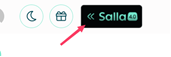
Go to the new dashboard.
3Find the Odoo Connector app
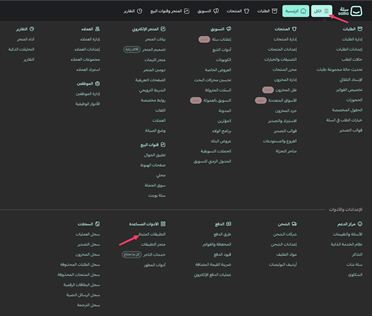
Navigate to the installed apps page and locate the "Odoo Connector" app.
4Press Reauthorize App
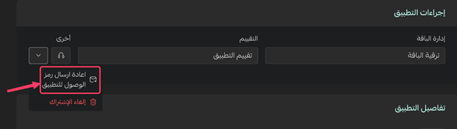
Click "Reauthorize App" to send a fresh access token to the connector.
5Confirm it worked
Go back to the dashboard and reload the page. If the red bar is gone, it worked. You can also open the Merchant info screen: if it shows your store details, the connection is healthy.
6Open Merchant info
The link opens the screen directly in the Integration Dashboard.
7Pull what was missed
Orders placed during the outage never reached the connector. It pulls anything missed in the last three days automatically each night. If the outage was longer, pull them by hand from the Orders screen using a date range.
8Open Orders
The link opens the screen directly in the Integration Dashboard.
9Why this happens
The access token has a limited life and the connector renews it automatically before it expires. The link usually breaks when the app subscription in Salla is renewed late, when the app is removed and reinstalled, or when store ownership changes.
10If the bar comes back quickly
If the red bar returns within hours of reauthorizing, something deeper is wrong — check the app subscription status in Salla, then contact support.