Reset and Delete All Data
Two screens with no sidebar entry, one of which wipes everything and requires reinstalling the app.
Read before you press
Both screens on this page are destructive and neither has an undo. Do not use them unless you fully understand what they do, or support has asked you to.
Reset
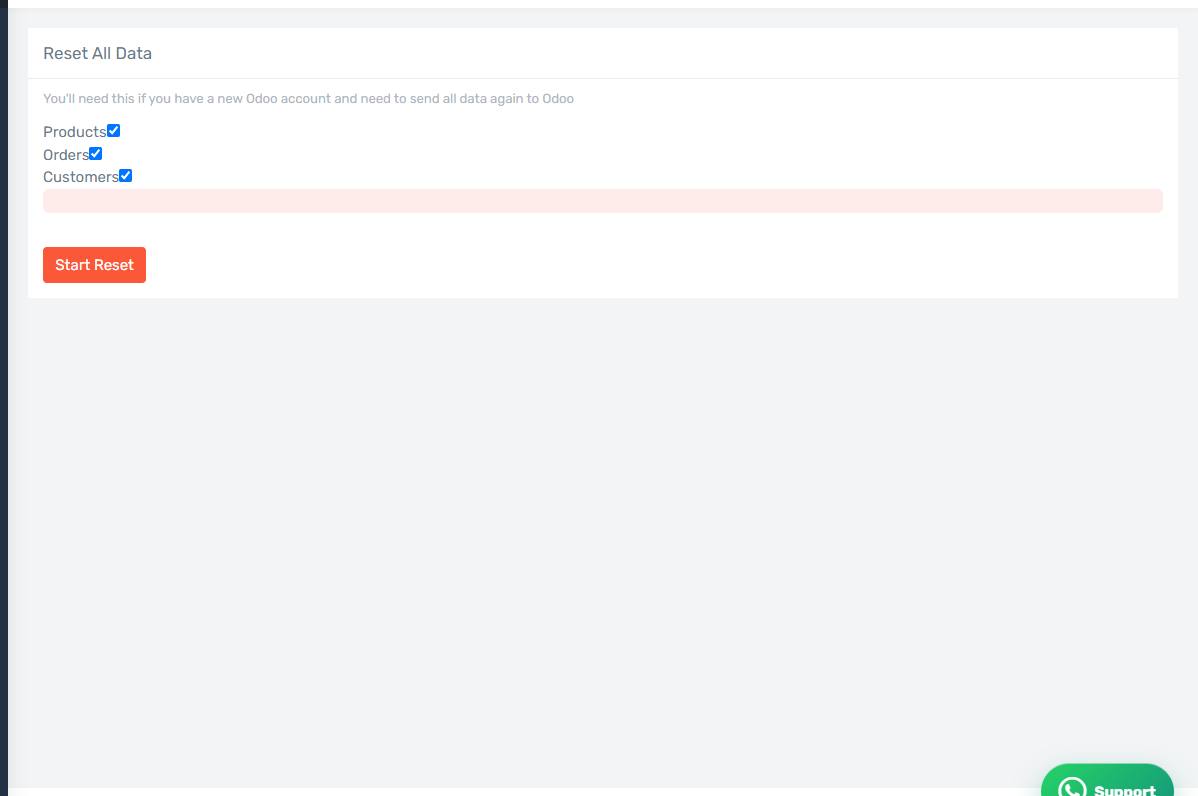
Use it when you switch Odoo databases or create a new one. It clears the links between the connector and the old Odoo — item, customer and document ids — while keeping your account and your Salla connection.
Afterwards you enter the new Odoo details and reload and remap your products.
Open Reset
The link opens the screen directly in the Integration Dashboard.
The Reset screen
How the screen appears in the Integration Dashboard.
Delete All Data
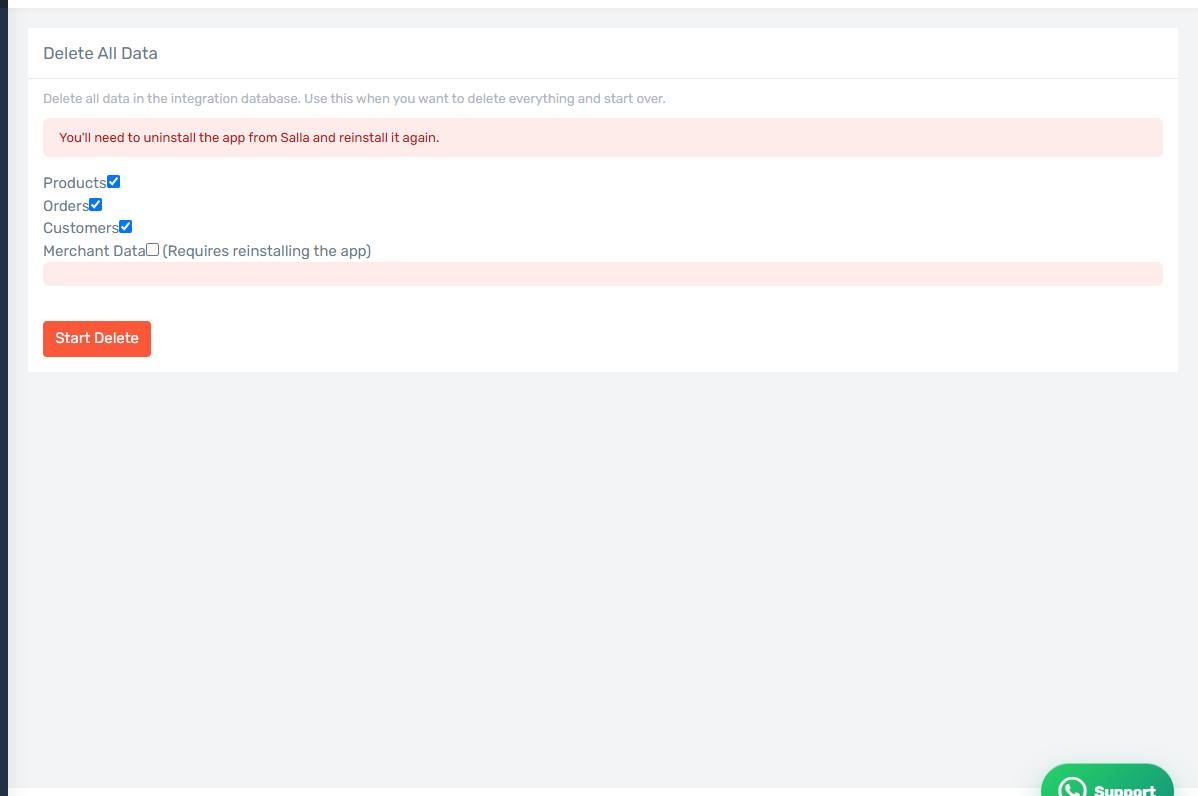
Wipes everything from the connector database: products, orders, customers and merchant data. Use it when you want to start over completely.
Open Delete All Data
The link opens the screen directly in the Integration Dashboard.
The Delete All Data screen
How the screen appears in the Integration Dashboard.
Deleting requires reinstalling the app
Deleting merchant data severs the connector's link to your store for good. You will need to remove the app in Salla and install it again before the dashboard works.
Do not do this on a working day, and make sure you need nothing from the records before wiping them.
Which one you need
In almost every case you want Reset, not Delete. Delete is reserved for cases support has asked for.